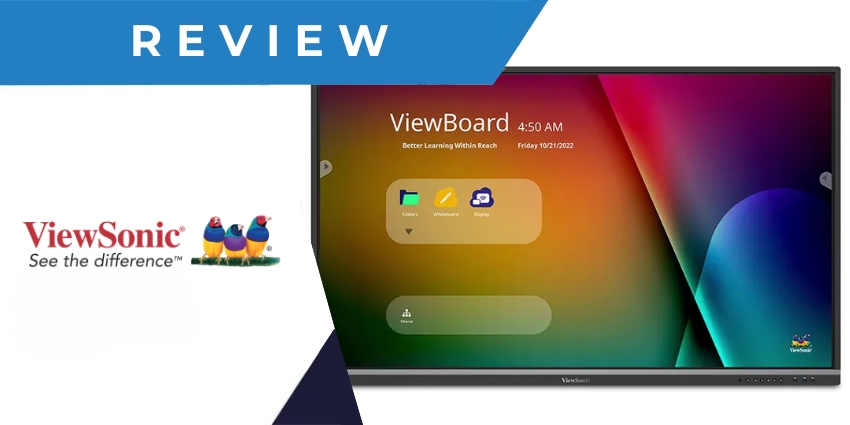
If you’re searching for an ultra-versatile interactive display that can instantly enhance both classroom experiences and team meetings, the ViewSonic ViewBoard collection could have the screen for you. With multiple options to choose from, these interactive displays are packed with advanced features.
Alongside a stunning 5K resolution and highly responsive 40-point touch capabilities, the ViewBoard screens come with built-in software for intuitive screen sharing, remote management, and seamless connectivity options for any use case.
So, how do these screens compare with the other industry-leading options available to modern teams? We put one of the displays to test to find out.
Quick Verdict: Pros and Cons
The ViewSonic ViewBoard collection of displays are fantastic for both business and classroom environments. Although the features vary depending on the version you choose, all options come with an intuitive interface with built-in gesture commands, and a natural touchscreen writing experience.
They also include built-in software, like myViewBoard Display and the vCast sender for wireless content sharing, and easy remote management tools. The biggest downside is that there is no built-in camera system on any of the screens. However, you can easily connect your camera or video bar with one of the USB ports.
Pros:
- Highly immersive 5K resolution
- Wide range of options for different use cases
- Intuitive built-in software
- Immediate connectivity with a range of apps
- Powerful remote management tools
- Highly responsive interactive touchscreen
- Gesture command controls available
- Dozens of ports and connection points
Cons:
- No integrated camera on any display
- Pricing can be expensive
ViewSonic ViewBoard Review: Overview and Specs
The ViewSonic ViewBoard isn’t a single display; it’s a comprehensive collection of versatile devices for educational groups and companies, created by a leader in the AV landscape. Different versions of the displays have their own unique features. For instance, the UW Collection (which we trialed for ourselves) includes a microphone array for audio collaboration.
However, all of the screens have overlapping features. For instance, they all have an ultra-high-quality 4K or 5K resolution and access to the comprehensive myViewBoard suite of annotation, presentation, and remote management tools.
Although the specs do vary, here’s a quick insight into what you can expect from one of these screens, based on the UW collection we tried:
- 5K DLED Backlight display
- 07B colors and 400 nuts of brightness
- Anti-glare surface treatment
- 8GB of RAM and 128GB of storage
- IR Recognition touchscreen
- HDMI, Display, Audio, and USB ports
- Integrated dual speakers and subwoofer
- Android 13 operating system
- Integrated software
- Instant compatibility with business software
ViewSonic ViewBoard: Audio and Screen Quality
As mentioned above, while the core features of the ViewSonic ViewBoard collection will vary depending on your chosen screen, all versions do deliver a fantastic AV experience. That’s exactly what we’d expect from a market leader like ViewSonic.
Although some options feature a 4K resolution, the UW collection product we tried takes things up a notch, with a 5K resolution, exceptional 400 nits of brightness, and a 1.07 billion color gamut. Most of these screens also come with integrated backlighting and anti-glare glass for an exceptional viewing experience that minimizes eye fatigue.
Even if you do opt for a 4K version, ViewSonic has built “eye-care technology” into its displays, to minimize things like blue light and distortion. All of these screens are also built for durability, with tempered glass to ensure longevity.
From an audio perspective, all of the screens in the collection include dual front-facing speakers with exceptional clarity, and some also feature an integrated subwoofer. We particularly liked the fact that the UW series, designed for collaboration, includes an eight-microphone array with background noise detection and reduction software already built in.
We would have liked to see a built-in camera on one of these devices too, for video conferencing purposes. However, you can easily build on your system with one of ViewSonic’s cameras, like the VB-CAM-21, or connect a third-party device.
Touchscreen Functionality and Collaboration
No matter which version of the ViewSonic ViewBoard you choose, you’re guaranteed a phenomenal interactive experience. All of these displays come with a highly intuitive and responsive touchscreen, which can easily detect the movement of fingers and pens with exceptional accuracy.
The Education-focused displays support up to 40-point touch capabilities, while the UW range knocks this up to a maximum of 50 touchpoints. Notably, the meeting room screens, intended for immersive collaboration, do have slightly fewer touchpoints (up to 20), but they’re still very intuitive.
With the ViewSonic ViewBoard collection, multiple people can easily write on a screen simultaneously, annotate documents, and complete brainstorming sessions. The UW collection also includes some particularly impressive additional features for collaboration.
For instance, there’s a multi-window mode that can display up to four separate windows at once, and you get an integrated Windows OS experience, ideal for creating a “computer style” experience on a larger screen. Users can simply plug in a laptop or computer and get to work in seconds.
Perhaps most importantly, all of these screens come with access to ViewSonic software that helps to enhance collaborative experiences. There’s the myViewBoard Display for presentations, and the full range of myViewBoard software tools for cloud storage, and video-assisted learning.
You can also easily download and use virtually any type of meeting or collaboration software on these screens, from Microsoft Teams, to Zoom, and Google Workspace.