
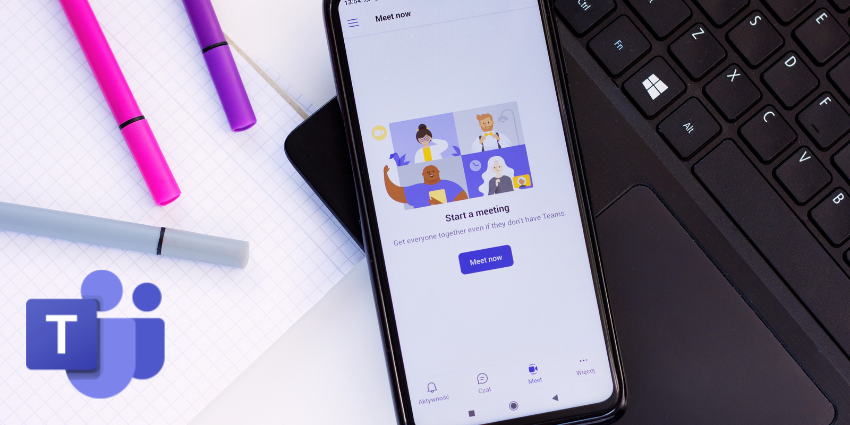
Collaborative notes for Microsoft Teams meetings have been made available in public preview and as part of a targeted release program.
The new Teams’ meetings feature enables meeting attendees to work together taking notes, forming agendas, and creating action items.
Meeting notes are not new to Teams, but this updated version automatically synchronises edits to the notes across all attendee devices, offering a more efficient and seamless collaborative experience.
Attendees are not restricted to a single app, Collaborative notes will be instantly updated whether they are shared in Teams, Outlook, Loop, Word for web, or Whiteboard.
How Collaborative notes work
Attendees can add recurring agendas to all meetings while scheduling in Teams. Simply click “Add an agenda everyone can edit” at the bottom of the form.
To join a Teams meeting and collaborate on meeting notes, click the “Notes” button in the toolbar. Next, in the “Meeting notes” pane, you can create agendas in real-time or review the agenda already provided.
If you are assigned a task during a meeting, you will also be sent an email notification and the task will be automatically synchronised with your Planner and To Do.
After a meeting, your Collaborative notes will stay in sync across Microsoft 365 apps.
Emily Kirby, Microsoft Tech Community employee at Microsoft, explains: “This fall, the integration of Loop components with OneNote will enable you to seamlessly incorporate your Collaborative notes into your OneNote notebooks.
“You will have the freedom to continue editing these notes within OneNote, helping you consolidate your meeting notes in a single, centralized notebook.”
In order to view your notes, click the target filename in Teams. You can also search for the relevant meeting name in Microsoft 365.
Assigned tasks will be available in the Tasks app in Teams, Planner, and To Do. To view the tasks or open Collaborative notes, click the “Assigned to me” option in Planner or To Do.
Issues and limitations
Guest participants can only be granted access to meeting notes after meetings, not before or during.
By giving an @mention to a user from within Collaborative notes on Microsoft 365, you will need to also need to give them access using “Share and notify”.
Error messages may appear if you join a meeting with over 1’’ attendees or if you are an attendee of more than 300 meetings that include tasks.


