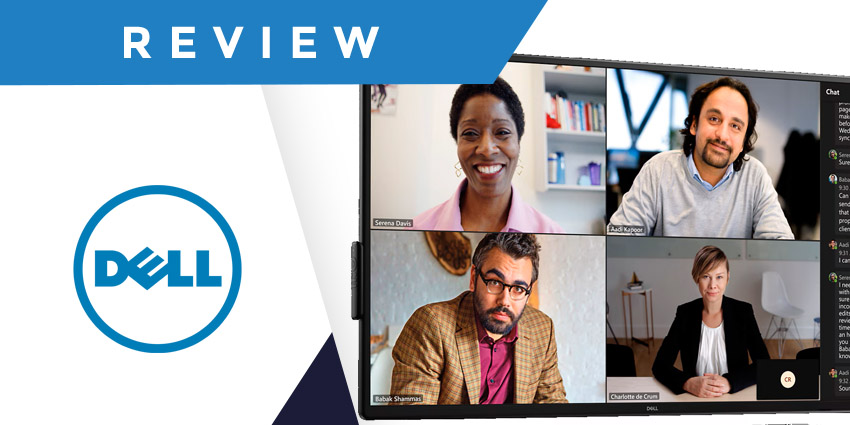
The Dell 55 4K conference room monitor is one of the most cost-effective ways to enhance your hybrid workplace, with high-quality visuals and convenient connectivity.
Most business leaders know that the right display makes a huge difference in today’s modern meeting rooms. More than just a screen, intuitive devices can make conferencing sessions more immersive, collaborative, and productive.
Compared to some of the other collaboration displays I’ve reviewed, like the Microsoft Surface Hub 3, Dell’s 54-inch display is a lot simpler. It doesn’t come with many bells and whistles, like an integrated AI assistant or one-touch meeting room joining options. It also doesn’t have a built-in webcam (although you do get excellent connectivity options for adding peripherals).
However, this display is definitely one of the more affordable options on the market for conference rooms. It can even support touch screen interactivity (for a slightly higher price).
Here’s everything you need to know about the Dell 55 4K conference room monitor.
The Quick Verdict: Pros and Cons
If you’re looking for a straightforward room display that combines a 4K resolution, with plenty of connectivity options, and intuitive controls, the Dell Conference Room Monitor is a great choice. It’s affordable, sleek and stylish. Plus, it’s great for sustainable companies. This eco-conscious monitor features 85% post-consumer recyclable plastic, and a few energy conservation features too.
The downside is there aren’t any built-in cameras, microphones, or AI tools, so you’ll need to purchase all of those extras separately.
Pros:
- Excellent 4K resolution with anti-glare capabilities
- Inclusivity features for diverse teams
- Optional touchscreen functionality with palm rejection
- Lots of connectivity options
- Easy management tools for business leaders
- Highly sustainable design
Cons:
- No included webcam or microphones
- Touchscreen functionality costs extra
- Limited mounting options
Dell 55 4K Conference Room Monitor: Overview and Specs
The Dell 55 4K conference room monitor is a simplified alternative to some of the more advanced collaboration displays on the market today. It’s not going to blow you away with AI features like the Cisco Board Pro G2, and it doesn’t have integrated microphones and cameras.
However, it’s still an effective option for companies looking for an affordable way to enhance meetings with high-quality visuals and touchscreen capabilities.
The standard version of the screen (without touchscreen functionality) only costs a little over $1,000, while the touchscreen version is almost three times the price ($2,799.99). However, I’d consider upgrading if you spend a lot of meetings using whiteboarding tools for brainstorming.
Here’s a quick look at the tech specs:
- Display: 4K LED-backlit LCD flat panel
- Size: 55 inches
- Refresh rate: 60 Hz
- Coating: Anti-glare
- Touchscreen: Optional multi-touch with palm rejection
- Ports: 3 HDMI, 3 USB 3.1 (upstream) and 4 USB downstream, Display port, Audio line-out, LAN, RS-323
- Audio: 2 speakers
Dell 4K Conference Room Monitor Review: The Display
Let’s start by examining the display itself. Dell promises a crisp, clear, and attractive viewing experience with its 4K LCD flat panel. The device comes with “ComfortView” technology, and anti-glare, anti-smudge coatings for a better viewing experience, and greater legibility.
There’s also built-in in-plane switching technology, so you’ll see consistent colors across the screen, regardless of where you’re sitting or standing.
If you splash out on the touchscreen model, you’ll get a fantastic multi-touch experience with built-in palm rejection to help people write naturally on digital whiteboards. Dell includes a dual-tip stylus with the touchscreen display, offering access to a fine writing tip and an eraser that makes it easy to sketch ideas or add annotations to documents in seconds.
Plus, the twenty-point InGlass Touch technology supports multiple people writing on the screen at the same time. It can easily track different users simultaneously, so everyone can work together on the same project without disruption.
I particularly appreciate this display's “inclusivity” features, too, such as the “Screen Drop” solution, which allows you to quickly adjust the screen to users working from different heights.
Ease of Use and Management
Since this display isn’t packed with as many advanced features as some of its competitors, you won’t really need to spend a lot of time setting everything up. You can easily mount the screen onto a wall with a VESA mount, and start using it instantly for all kinds of collaboration sessions.