
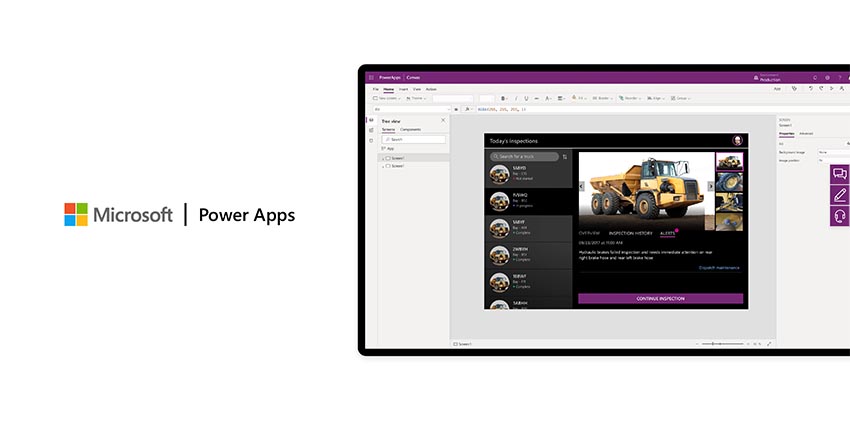
With the advent of Power, Apps Microsoft allows more teams to build unique collaborative experiences in a digital world.
Designed to respond to the rising demand for low-code and no-code functionality, the Power Apps ecosystem is a suite of apps, tools, connectors designed to help you build apps for your small business. Thanks to Microsoft's pre-built templates, you don’t necessarily need any existing technical knowledge to use these tools, ready to get you started.
With more teams working in remote and hybrid environments than ever before, staff rely on a host of apps to keep them operating productively in any environment. Here’s what you need to know about building a custom app for Microsoft Teams.
Tapping into the Microsoft Teams Dataverse
Microsoft’s low-code app environment means you can create your custom tools and automation to empower staff members wherever they might be. Rather than having to wait for another developer to create the perfect tool for your distinct needs, you can design the technology you need yourself.
To enable this, Microsoft introduced the Microsoft Dataverse for Teams. The dataverse is a built-in solution for Microsoft Teams, allowing users to build custom apps and workflows using Power Apps and Power Automate. Essentially, you’re getting a package of tools from data storage to various crucial data types and one-click deployment bundled into one.
Each team on Microsoft Teams can only have one Dataverse for that collaboration environment. The Dataverse stores manage and shares team-specific information, workflows, chatbots, and apps created with Power Apps.
The updated Power Apps application within Teams provides an integrated experience for app markers, so you can begin building workflows and editing apps inside of your collaborative tool. Once you’re done building and editing, it only takes one click to quickly publish your app and share them with your entire team.
Getting Started with Apps in Microsoft Teams
There are a couple of ways to use the apps created by Power Apps within Teams. The best option is to install the Power Apps Personal app in Microsoft Teams. You can do this by opening Microsoft Teams, then clicking on “More added apps.” After installing Power Apps, you can pin it into your Microsoft Teams sidebar, so you can access the app whenever you like.
To start building your app using the Personal App in Teams, click on Power App, then click on “Create”. Choose which team will own or host the app and give the app a name.
If this is the first app being created for a selected team, you’ll need a new Dataverse for that team. Microsoft will make the Dataverse for you, so don’t worry. It might take a little while for Teams to organise all your data. Once you have your dataverse:
Next:


