
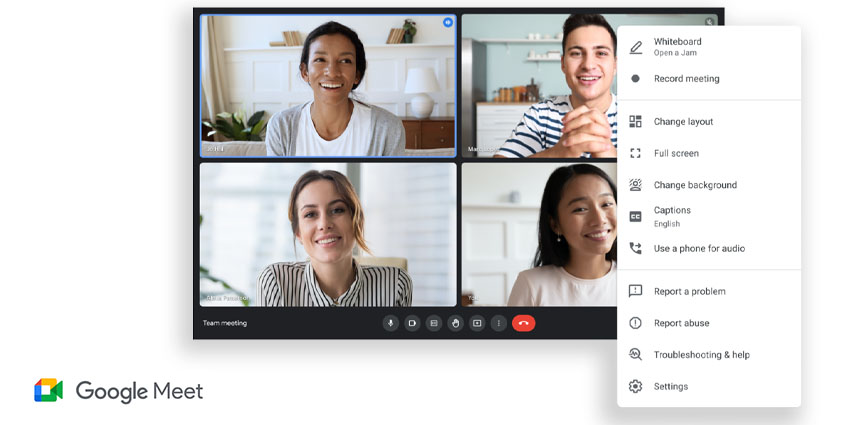
Google Meet is a cloud-based platform that allows users to organize and host meetings with their colleagues, clients, or business partners. It lets users communicate and collaborate via video calls, chat, file sharing, call transcriptions, screen sharing, and much more. In 2020, the company announced that users would now be able to change their background in Google Meet, replacing their real-world environment with an image of their choice. The feature does not require any additional extension or download – you can open the Meet interface and change the background before or during a Google Meet meeting.

Prerequisites for Changing the Google Meet Virtual Background
To begin with, users need an active Google Workspace subscription, which could be either a paid or a free account. The feature is available for nearly every Workspace plan, from Essentials to Business (Starter, Standard, and Plus), Enterprise (Essentials, Standards, and Plus), and education and non-profit customers. Users should not worry if the feature is not available right away – customizable backgrounds for Meet are turned off by default and must be changed proactively.
Google Meet on Windows, macOS, or Linux requires a minimum Chrome version of M84. Users need Android version P or higher on Android devices, at minimum 4 CPU cores, 1.6 GHz CPU clock speed, and ARM64 Architecture. The feature is available on all significant iPhones, including iPhone 6s or newer, with iOS 12 or higher.
Chrome OS users can also change their background, providing they are on Chrome M86 or above. Make sure that hardware acceleration is turned on while using Google Chrome to render the graphics accurately.
Note that Mac users can access the “change background” feature only from Chrome and not any other browser. The quality is also available on Windows and Linux systems.
How to Change Your Google Meet Virtual Background Before a Call
Before joining a meeting on Google Meet, follow these steps to change the background:
1. Sign in to the meeting by opening Google Meet
2. Click on the "Change Background” icon in the bottom right corner. It is the one that looks like an image of a head with lines around it.
3. Various background options will be available in the "Change Background” menu.
Select the second or third options to Blur or Slightly blur the background (each containing an image of a person surrounded by dots). Instead of blurring your existing background, you can change your background to a default or custom image.
Click the plus icon to upload a background image. This will open the computer's file system. Locate the file and select it. Users can also choose an image from Google Meet's stock background images library – click on the default image of your choice to set it as your background.
4. Now that you have selected your background, click on Join now to start your call.
Remember that the Google Meet backgrounds feature may not work correctly if hardware acceleration is turned off in Chrome. You can check this setting by opening the More menu from the top right of the Chrome window. Click on Settings, navigate to Advanced, and click on the Down arrow. Now, click on the Settings icon (which looks like a wrench) and turn on hardware acceleration.
Restart Chrome and try changing the Google Meet background once again.
How to Change Your Google Meet Virtual Background During a Call
The platform also allows users to change the background or blur it even after joining the call. Interestingly, this feature is available to all call participants, even if they are not logged into a Google account. Follow these steps to access the feature:
1. On the bottom pane, click on the three vertical dots icon to open the More menu.


