
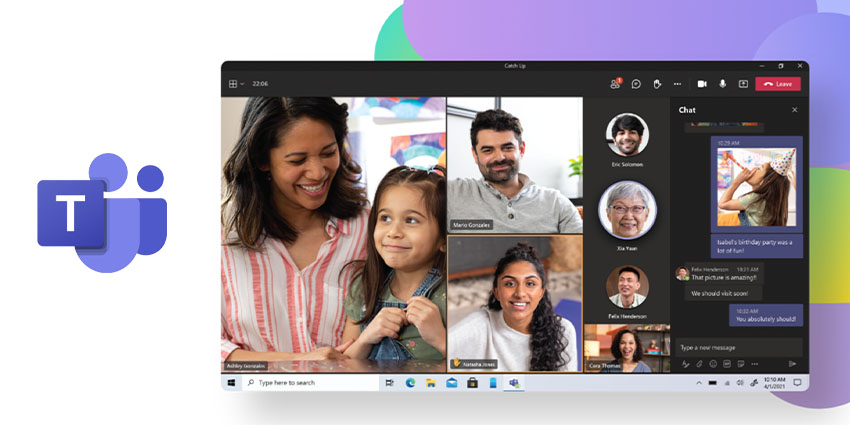
Microsoft Teams is a popular and widely used workspace and collaboration platform. Users can communicate with colleagues through voice calls, video conferences, messaging, and file-sharing, making it a common choice for businesses of all sizes, from small startups to large enterprises.
Of course, before one can really get the full use out of Microsoft Teams and all its features, they need to install and set it up. So, if you want to start using Teams but aren’t sure how to begin, this guide will show you all the ways you can download Microsoft Teams.
How to Download Teams on your Desktop
The first way to download Microsoft Teams is perhaps the easiest. You can download and install Teams right to your desktop at teams.microsoft.com/downloads as long as you have the necessary local rights.
Once it’s downloaded, just open the file and the installation will begin. Mac users will need admin permissions to install the Teams client, but Windows users will not.
IT professionals can also control how the installation files are disseminated to their company’s devices, using tools like JAMF Pro for macOS or Microsoft Endpoint Configuration Manager for Windows. However, this only works for the initial installation of the Teams client—individual users will have to install any future updates on their own.
You can install the desktop client on these systems:
- Windows: Windows 11, Windows 10 (although not Windows 10 LTSC for Teams desktop app), Windows 10 on ARM, Windows 8.1, Windows Server 2019, Windows Server 2016, and Windows Server 2012 R2.
- Mac: The three most recent versions of macOS (which, at the time of this writing, are macOS Ventura, Monterey, and Big Sur). When a new macOS is released, the oldest version will no longer support Microsoft Teams.
How to Download Teams on Your Mobile Device
For users who want to access Microsoft Teams on their mobile devices, there are iOS and Android apps that will allow you to join chats and make audio calls while on the go.
For iOS users, you can find it on the App Store here: https://apps.apple.com/us/app/microsoft-teams/id1113153706. Keep in mind that only the two most recent major versions of Apple’s mobile operating system are supported; if your device uses an older OS, you’ll have to update.
Android users can find it on the Google Play Store here: https://play.google.com/store/apps/details?id=com.microsoft.teams. Microsoft Teams is supported on the four most recent major versions of the Android operating system.
If you live in a region that doesn’t have access to the Play Store or App Store, you can find Microsoft Teams from your smartphone company’s application marketplace. For instance, users in China can find Microsoft Teams for Xiaomi, Huawei, and Baidu devices from their appropriate stores.
Make sure that you’re using the mobile platform’s app store to download and update the app directly, as Microsoft doesn’t support MDM or side-loading for mobile app deployment. Once installed, the Teams mobile app will be supported as long as the version is less than three years old (although it’s still recommended you update frequently to make sure you’re getting the latest features and security patches).


