
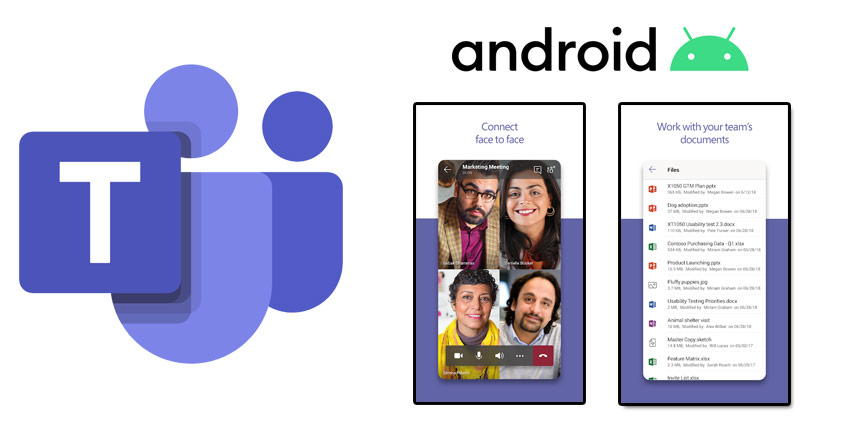
As one of the most popular work collaboration app on the market today, Microsoft Teams is transforming the way that employees work together. Particularly in the current environment, where remote and distributed workers are becoming more common, it’s important for staff to have access to these tools wherever they are. In some cases, this means even logging into Teams from smartphones.
The good news is that employees can easily unlock the power of Microsoft Teams on their smartphone with an app for iOS and Android. If you need to make sure that you’re always connected to your colleagues on the go, we can help.
Here’s your step-by-step guide on how to download and use the Microsoft Teams app for Android phones.
Step 1: Check You Have the Right License
The first thing to note when you’re downloading the Microsoft Teams app for Android, is that you do need a subscription to Office 365. You’ll be asked to log in after you download the service. You need either a free or trial subscription of Microsoft Teams, or a full subscription for Office 365. It’s up to you which option you use.
Check with your IT department or admin to find out what kind of license you’re going to be using. It may also be worth checking the Teams terms and conditions to make sure that you’re comfortable with the privacy requirements.
If you have any privacy or security apps on your phone, make sure that they allow access to Microsoft Teams.
Step 2: Download Microsoft Teams
Next, go to the Google Play store and search for Microsoft Teams. You should find the Teams app pretty quickly here. Click the download button to add it to your phone. When you open the app, you should see a screen that lets you sign into your account.
Tap on Sign In. Enter your Office 365 credentials that you got when you signed up for the account with your business. Teams will load up, and you’ll get some initial walk-through steps that introduce you to the app and how it works.
During this initial stage of setting up Teams, it’s a good idea to make sure that you have all the permissions you need in place. To do this, go to the Settings tab on your Android phone, then tap Apps (or application manager).
Select the Microsoft Teams app and scroll down to permissions. Here, you’ll be able to control what kind of information Microsoft has access to. You can also switch notifications on and off.


