Google Meet Companion Mode has emerged as a popular feature of the collaboration platform in educational and enterprise collaboration settings.
Initially only available for users of Google’s web-based collaboration solution, Companion Mode is now available on desktop and mobile devices. Google says this update will ensure every employee has an innovative, convenient way to engage in meetings regardless of their chosen device.
Designed for the era of hybrid work, Companion Mode allows multiple users to “check-in” to a meeting room, share reactions, exchange chat messages, and more, even when they’re not a complete “participant” in a meeting.
Here’s your guide to Google’s updated Companion Mode feature and how to use it to boost meeting equity and enhance hybrid work.
What is Companion Mode in Google Meet?
Google Meet Companion Mode allows users to join Google Meet video calls on a second screen, where they can access features for chat, screen sharing, and more. It addresses one of the most common issues plaguing hybrid conferences and meetings.
Before companion mode, if multiple people joined a conference from a single meeting room, they couldn’t participate in the conversation entirely. They could speak and show up in the video stream, but they couldn’t access polls, meeting chats, hand-raising tools, and more.
With Companion Mode, individual participants can join a meeting and access various collaborative features without disrupting the conversation.
Unlike “participant mode,” Companion Mode automatically turns off audio input to eliminate feedback when multiple users are collaborating in the same space. According to Google, this feature is ideal for participants in a hybrid meeting who want to interact with colleagues through chat, screen sharing, and emoji reactions so they feel more included in the conversation.
Companion Mode is also great for people who want to use multiple devices for different aspects of a meeting. For instance, you might use your smartphone to join a meeting as a participant for access to great video and audio clarity, and your laptop to take notes and chat with employees in real time.
The Features of Google Meet Companion Mode
Companion mode gives users a unique way to join meetings and get involved in a conversation, even when sharing a room with other employees. It differs from “participant mode,” as users don’t have microphone and audio controls, but they can still:
- Check in to a meeting to show you’re present and active in a conversation.
- Share emoji reactions without interrupting a host or speaker.
- Turn on captions to view subtitles and take notes during a meeting.
- Exchange chat messages with other people in the meeting.
- View and zoom in on content presented during the meeting.
- Use “hand raising” to indicate you want to speak.
- Share your screen or access a virtual whiteboard.
Basically, the feature gives you all the tools you need to engage in a meeting without audio. You can also seamlessly switch to “participant” mode on your device if you need to speak to other meeting room participants using your preferred microphone.
How to Use Google Meet Companion Mode
As mentioned above, Companion Mode was available only to web-based users. In February 2024, however, Google updated the feature to include support for Apple and Android devices.
Here’s how you can use the feature on any device.
Using Companion Mode on Google Meet for the Web
If you’re using a laptop or computer to access Google Meet’s web application, there are two ways to access the feature. First, log into the Companion Mode website from your chosen device. You’ll need to enter the meeting room code to connect, or you can select a scheduled meeting from your integrated Google Calendar.
The second option is to connect your laptop to Google Meet from a meeting invite. When you receive an invitation, click the “Join” option. Under “Other Joining Options”, select “Use Companion Mode”.
When you join the meeting, you should automatically be in “Companion Mode,” and a pop-up will appear asking if you want to “check in?” to the meeting. You can also “check in” after the meeting starts, by clicking on your meeting name and clicking “Check-in”.
Quick tips:
- If you want to use your microphone, click the “leave” button and rejoin from the meeting link in “participant” mode.
- Click “check into a different room” to check into an alternative conference room.
- Click “check out” to remove your name from the list of Companion Mode participants.
Using Companion Mode on a Mobile Device
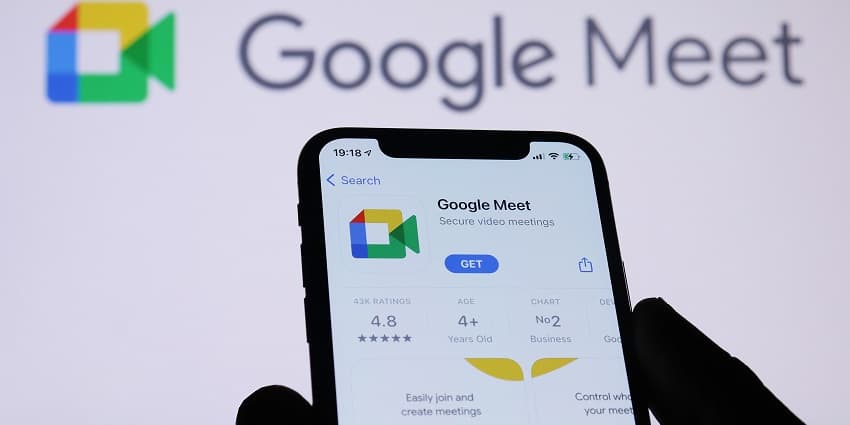
The first thing you’ll need to join a meeting in Companion Mode on a mobile device is the Google Meet app, available from both the Apple iOS and Google Play store.
Once you’ve installed the app and logged in with your credentials, open the app and tap a video from your list of upcoming meetings (integrated with Google Calendar). Alternatively, tap “Join with Code” to join a meeting with a code or nickname.
Under the “Self-View” section, tap “Use Companion Mode.” You can then check into the meeting using the pop-up that appears or the dialog box.
Just like on a laptop or computer, you’ll be able to leave the meeting and rejoin as a participant, check into another room, and check out of your current meeting using the Meet app.
Using Google Meet Companion Mode Features
Most of the key features you can access in Google Meet Companion Mode will work exactly as they do on the platform if you’re in “Participant mode.” For instance, you can click on an emoji to share a reaction during a meeting and chat just like you would in any meeting.