
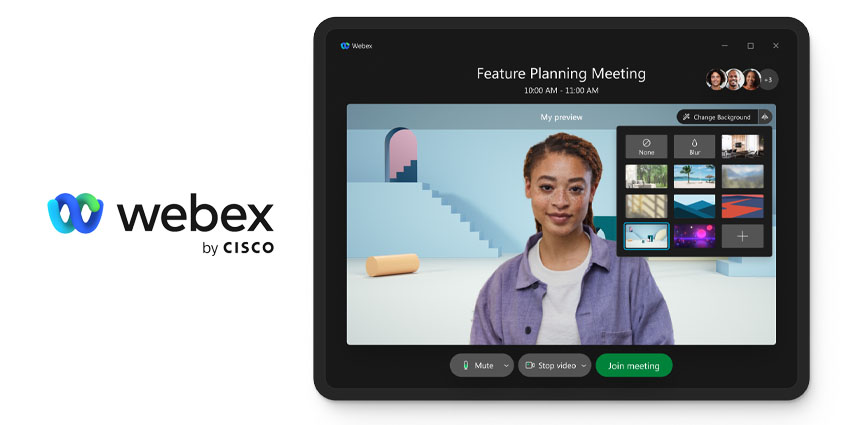
As demand for video conferencing and collaboration tools has continued to grow, so too have the number of solutions available to help facilitate more successful meetings and events. Virtual backgrounds, for instance, are one of the most effective ways for video communication users to enhance their professional image when connecting with colleagues and clients.
With a virtual background, employees working from home can hide the mess of their sitting room, protect their privacy, and make it appear like they’re sitting in a traditional office. A virtual background can also help business users deliver a consistent brand image when hosting events, webinars, and conversations with customers.
Fortunately, most top video conferencing tools today have various virtual background features and functionality to explore. Here’s how any Webex meetings or event user can access their own virtual background.
Prerequisites for Using Webex Virtual Backgrounds
Most employees using a Webex ecosystem for virtual meetings and events will be able to customize their backgrounds. However, there are some prerequisites for business administrators to keep in mind. For instance, some versions of specific operating systems may not support virtual backgrounds.
Currently, the following application versions are suitable for virtual backgrounds:
- Mac and Windows: 40.6.x and later, and 40.8 and later for custom backgrounds.
- IOS: 40.4 and later for Webex Events, Meetings, and Training virtual backgrounds.
- Android: 40.6 and later for all Webex Meetings, Training, and Events
Notably, Webex does note that the “Change Background” option on Webex may not work on some Windows devices, even if the option appears on the application.
Users running virtual backgrounds on a Windows OS will need at least an Intel Core i3 processor or higher, 4GB of Ram, and an Intel HD Graphics driver (version 26.20 or later). Mac users need at least an Intel processor with six cores or higher.
Before users in a Webex team can use virtual backgrounds, administrators will also need to configure the option to be available for their users. To do this, visit the Webex Site Administration section and go to the “Configuration” tab. Click on “Common Site Settings,” followed by “Options.”
Scroll to the “Site Options” section and check the box for “Enable virtual background.” If a Webex site is version 40.4.12 or earlier, admins may also need to check the “Display user avatars in the meeting client” option. To allow users to choose their virtual backgrounds, check the box for enabling custom backgrounds.
How to Use a Webex Virtual Background
Once the administrator for a Webex team has enabled virtual backgrounds, it’s relatively easy for users to choose one of these backgrounds during events and meetings. The process is slightly different for each device, however.
On Desktop:
Mac and Windows users can choose whether to set a virtual background during or before a meeting. Before a meeting, click the “Change Background” option in the preview screen, and select the appropriate background. Users can blur their surroundings, choose a default virtual background available for all Webex users, or upload a unique virtual background.
Clicking the “+” icon will allow users to upload an image, animated GIF, or video file for their background if “custom backgrounds” have been enabled. Webex recommends using a file of at least 480 x 360 pixels.


