
Zoom has launched Zoom Clips, a solution enabling asynchronous video conversations through recording and sharing high-quality, short-form videos.
Zoom's ambition is to allow coworkers to collaborate even if they are unavailable for a call, with asynchronous video enabling users to record themselves and their screens and send brief but valuable videos to colleagues and customers. Zoom outlines that the offering provides greater communication possibilities, reduces time inefficiencies, and accommodates collaboration across time zones.
David Ball, Product Marketing Manager, Meetings & Chat at Zoom, wrote in an accompanying blog post:
Zoom Clips allows you to easily record, edit, and share high-quality short-form videos both internally and externally. With our new asynchronous video offering, you can demonstrate important information with teammates in a pinch, add a personal touch to your collaboration, or just share a detailed project update without having to join a live meeting."
Users can access Zoom Clips and launch the product from the Zoom desktop app, the Zoom web portal, the Mac menu bar or the Windows system tray.
Zoom Clips is available now in global beta. It is included for all Zoom One customers, including Zoom One Basic.
A Comprehensive Feature Set
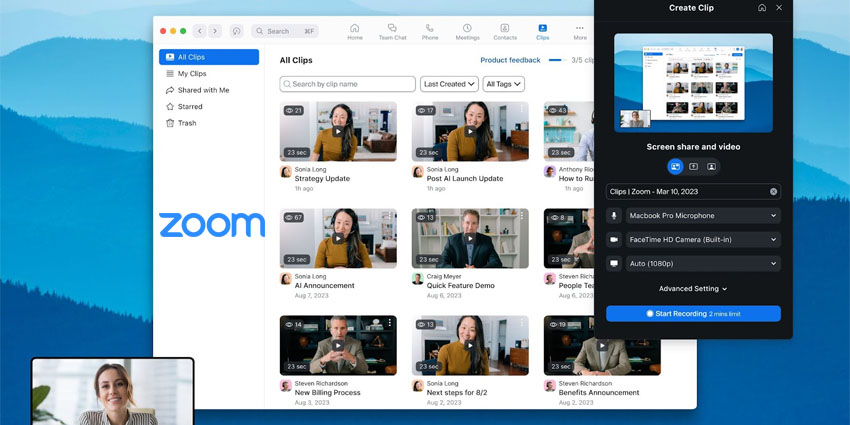
Zoom Clips also includes a dedicated content library for users to manage, share, rename, download, or delete their clips. Users can find specific clips by searching based on titles or tags.
Those colleagues with whom the video has been shared can access various Clips features. Users can view, leave comments, or use emojis to react to a clip. They can track views to understand how those Clips are landing with their audience. Users can track other video metrics, such as completion rate, for a more nuanced reading of how their content is being digested.
The user who recorded the original Clip can reply to viewers' comments, creating a straightforward approach for collaborating, answering questions and encouraging engagement.
Once the user is on the Clips section of the app, they can choose to record themselves, their screen or both. However, they can also produce targeted content by selecting the specific screen they want to record or their entire desktop. They also have the option to use a virtual background, toggle on noise suppression, or tweak video quality.
There are also rich editing options. Users can change the clip name and description, add tags to make the video easier to identify later and trim superfluous sections of the clip for a more professional end product.


