
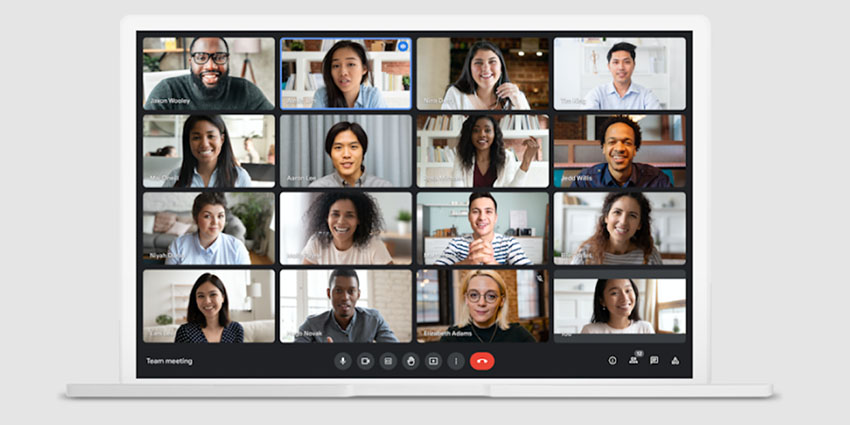
If you’re wondering how to record Google Meet sessions securely and on any device, you’re in the right place. Though Meet is a little simpler than alternative video conferencing tools like Microsoft Teams and Zoom, it’s still a convenient, free way for teams to collaborate.
Plus, the app has some handy features, like companion mode, allowing you to join a meeting and interact with other users without audio. Still, if you’re using Google Meet for work, there’s a good chance you’ll need to record at least some of your meetings.
You might need to record conversations for compliance purposes, to train new team members, or even just to review your discussion at a later date. So, here’s your complete guide to recording Google Meet conversations on any device.
Can You Record Google Meet Sessions?
Just like Microsoft Teams, Zoom, and countless other platforms, Google Meet has a native recording feature. Unfortunately, it’s only available to users on a paid Google Workspace plan. If you’re using the free version of Meet, you can only transcribe up to 20 minutes of meetings; there’s no recording option.
Before you try recording a session, make sure you have the right license (virtually any paid Workspace or Google One license should work). You’ll also need an administrator-level account, or an admin will have to “enable” Meet recordings for you.
To enable Google Meet for everyone in your workspace, sign into your Google Admin console and make sure Google Drive is switched on (this is where your recordings will be stored). In the admin console, go to the Menu, then click on Apps followed by Google Workspace and Google Meet.
Click on the Video Settings option, then click Recording and check or uncheck the box that allows people to record. You can also choose to apply this setting to everyone or just a specific group. Plus, you can set “recording quality limits”.
Remember, after you’ve saved your new settings, it can take up to 24 hours for changes to take effect.
How to Record Google Meet: Who Can Use Recording?
Like most meeting apps with a recording option, Google doesn’t allow everyone to record by default. You can only record a meeting if you have the right Workspace license, the feature is enabled, and if you’re a:
- Meeting host
- Co-host for a meeting
- Member of a host’s organization and Host Management is switched off
- Co-teacher or teacher in Google Classroom
What Can You Record in a Google Meet Session?
If you’re wondering how to record Google Meet sessions, you’ll probably also need to know what the native feature allows you to record. After all, you’ll probably want to capture more than just voices. According to Google, all Meet recordings will capture the voice and video of the active speaker, plus anything else presented, such as a shared screen.
You can also choose to record captions from the meeting (which can be helpful for extra context). However, other windows, notifications, and additional information aren’t included in the recording. Plus, pinning a participant in the session won’t affect who is shown in the recording.
Chats are recorded throughout the entire duration of the video session (and they’re stored as a . SBV file in the meeting organizer’s Google Drive).
Keep in mind that you’ll need to select “Record Captions” to include captions in the clip, and your video file might be ready before the captions are when you want to review the recording.
How to Record Google Meet Sessions on Any Device
Now, let’s get down to how you can record a Google Meet session. First, Google’s native recording feature only allows you to record on a desktop (Mac or Windows computer or laptop). However, there is a workaround if you want to record Google Meet sessions on a mobile.
Here’s how the process works.
How to Record Google Meet Sessions on a Computer
If you’re using a Mac or Windows PC, you can use Google’s native recording feature to record any Meet session (provided you have the right license and permissions). On your computer, go to the Google Meet webpage and select Start to launch a meeting or Join to attend a meeting.
Next:
- Click the Activities button on the bottom right of your screen.
- Select Recording and choose whether you want to record meeting captions and which language you want them to be saved in.
- Click Start Recording.
- When a pop-up screen appears, click Start
Your meeting participants will get a notification when the recording starts and stops. After 8 hours (if your meetings are that long), the recording will stop automatically. If you want to stop recording yourself, just click the Activities button again, then Recording > Stop Recording.
The recording will also automatically stop if every participant leaves the meeting.
Accessing your Google Meet Recording
Your Google Meet recordings will automatically be saved to the meeting organizer's Drive in the “Meet Recordings” folder. Notably, for meetings created through Google Calendar, the meeting organizer is the person who creates the event. For meetings launched through the Google Meet home page, the organizer is whoever launches the meeting or creates invite codes.
You can play, share, download, or save a recording in a few ways.
From Google Drive, you can:


