
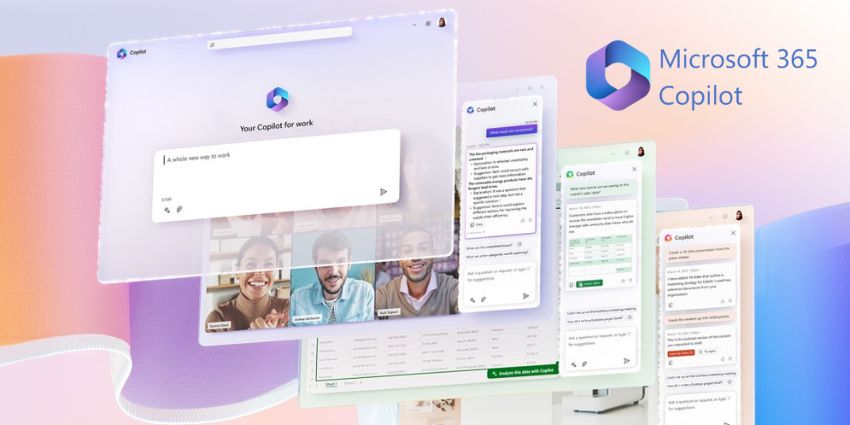
Learning how to use Microsoft 365 Copilot – the tech giant’s leading generative AI tool – the right way will be crucial for many organizations in the years ahead. There’s more to getting the most out of this powerful AI assistant than enabling access for yourself or your team.
Microsoft 365 Copilot is a resource capable of improving the productivity and performance of your team. Microsoft’s Work Trend Index found that 70% of people using Copilot tools believe they make them more productive. Another 68% say the tool improves the quality of their work.
However, like any resource, it demands the right implementation, configuration, and strategy for use. Here’s your ultimate guide to unlocking the total value of Copilot in Microsoft 365.
What is Microsoft 365 Copilot? A Quick Overview
It's worth getting a few things straight before we explain how to use Microsoft 365 Copilot effectively. Microsoft 365 Copilot and “Microsoft Copilot” aren’t the same thing. The tech giant has a broad lineup of unique “Copilot” solutions for different use cases.
Versions include Microsoft Copilot (previously Bing Chat/Bing Chat Enterprise), Microsoft Dynamics 365 Copilot, Copilot for Sales, and Copilot for Service.
Copilot for Microsoft 365 is the solution that adds generative AI capabilities to your Microsoft 365 apps, such as Word, Outlook, and Teams. It has the same foundational capabilities as the broader Copilot solution, such as web grounding and commercial data protection.
However, it also inherits your Microsoft 365 security, identity, privacy, and compliance policies and supports users within the flow of work on specific tools.
Copilot for Microsoft 365 delivers real-time intelligent assistance to team members, using a combination of LLMs, pre-trained models, and content in Microsoft Graph. It’s available as an “add-on” for your existing Microsoft 365 license for $30 per user per month. It includes the recently announced “Microsoft Copilot Studio” for low-code AI customization.
How to Use Microsoft 365 Copilot: Getting Started
To use Microsoft 365 Copilot, you’ll need a $30 per user per month license for the add-on and an accompanying Microsoft 365 license. You likely already have the necessary licenses if you use Microsoft 365 E3, E5, or Microsoft 365 Apps for Enterprise.
You can assign licenses to users as an admin through the Microsoft 365 Admin Center in “Billing > Licenses.” Alternatively, you can assign licenses using the Azure Admin Center or PowerShell.
Other prerequisites include:
- Microsoft Entra ID: All users need a Microsoft Entra ID (formerly Azure Active Directory) account. You can manage these via the Microsoft 365 Admin Center.
- OneDrive accounts: Several features for Microsoft 365 Copilot require users to have their OneDrive account (such as features for sharing and saving files).
- Outlook Accounts: Microsoft 365 Copilot works alongside the new Outlook experience for Windows and Mac. Users will need to switch to the new Outlook service in preview.
- Microsoft Teams: To use Copilot with Teams, users will need a desktop or web version of the app. Both the current and “new” versions of Teams are supported.
- Microsoft Loop: To use Copilot features in Loop, you’ll need to enable the Loop service for your tenant. Microsoft provides instructions on how to do this here.
- Microsoft Whiteboard: For Copilot features in Whiteboard, you’ll need to enable the Whiteboard feature for your tenant.
Using Microsoft 365 Copilot in Each Microsoft App
All Copilot functionality spread across the Microsoft 365 ecosystem uses the same technology. However, the generative AI assistant also adapts to the app’s functionality to deliver specific solutions for certain use cases.
Here’s how to use Microsoft 365 Copilot in each productivity app.
How to Use Copilot in Word
In Word, Microsoft 365 Copilot transforms your content efficiently and creatively, allowing users to summarize, create, refine, and enhance documents. Use the app to upgrade your documents and visualize and transform text into a table.
You can also draft new documents by referencing up to 3 existing documents to help create consistency between connected pieces. Users can also access Copilot in Word to reveal changes and revisions made to collaborative documents by team members.
Using Copilot in PowerPoint
With PowerPoint, teams can use Copilot to turn ideas into presentations. The app can transform written documents into slide decks with speaker notes or create brand-new presentations from a prompt. Plus, you can condense lengthy presentations with a click and use natural language commands to reformat text, layouts, animations, and more.
PowerPoint’s Copilot also integrates with DALL-E, the OpenAI image generator, to help create custom images. Microsoft is introducing a new asset and image library that will allow users to bring corporate brand assets into presentations, too.
How to Use Microsoft 365 Copilot in Excel
In Excel, Copilot works alongside users to analyze and understand data. You can ask the app questions about your data sets, and it will reveal correlations, suggest new formulas, and propose “what-if” scenarios to explore. You can also generate new formulas based on your questions to help you explore your data without modifying it.
The recently announced “Python in Excel” will also integrate with Copilot, allowing users to perform sophisticated mathematical analysis with one of the world’s most powerful programming languages.
Using Copilot in Outlook
Outlook’s Copilot helps users stay on top of inbox conversations and communicate with message suggestions in seconds. The app can summarize email threads, jump to the source of summarized content, and show suggested action items, replies, and follow-ups.
In 2024, Outlook users can create email thread summaries, draft agendas, create engaging meeting titles, and suggest attendees for conversations. Plus, it can offer times when everyone can meet based on your calendar and help you prepare for upcoming conversations. The system will comb through related emails, pertinent documents, and invitation details for you.
How to Use Copilot in Teams
Copilot for Teams is one of the most feature-rich versions of Microsoft’s generative AI app. The assistant can recap and summarize conversations, organize key discussion points and actions, identify individuals for follow-ups, and create meeting agendas.
From 2024, you’ll be able to learn how to use Microsoft 365 Copilot to take collaborative notes during meetings and capture specific content with requests like “Quote Rob.” Users can enable Copilot without transcription to eliminate unnecessary records. Plus, you can use Copilot in Teams channels to synthesize long posts, write messages in various tones, and more.
You can also use Intelligent Recap with Copilot in Teams to catch up on missed meetings with summaries of decisions, action items, and critical points.
How to use Microsoft 365 Copilot in Whiteboard
In Whiteboard, Copilot helps users start and improve the ideation process. It can generate, categorize, and summarize ideas for you. Plus, Copilot will automatically capture and visualize spoken discussion points when using Whiteboard in a Teams meeting. It can also organize those points for you in a format that makes sense based on the meeting.
Using Copilot in Microsoft Loop
Copilot in Loop, Microsoft’s new collaboration app, helps teams to work together more effectively. Loop gives users a flexible canvas for collaboration between generative AI and people. Users can create and share prompts for Copilot together, organize team projects, summarize content, and generate recaps of meetings.


