
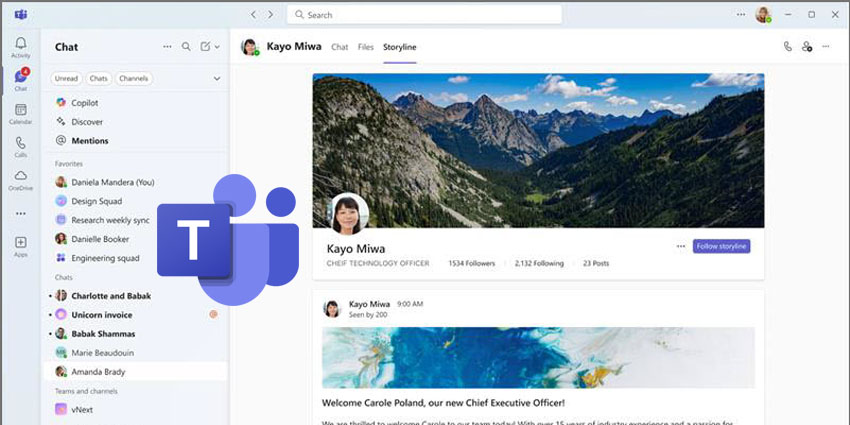
Enterprise internal communications can often have a noise problem. Important updates are regularly buried under emoji reactions, strategy notes fade away in endless threads, and leadership messages vanish into inbox limbo. Microsoft’s new Storyline feature for Teams—currently in preview—could be an invaluable tool for providing the structured, asynchronous comms channel enterprises need.
Inspired by the familiar format of LinkedIn feeds, Storyline allows individuals to "share experiences, celebrate milestones, propose ideas, and discuss interests," as Microsoft suggests. Crucially, there are no tags, channels, or chat clutter.
While not yet generally available, it's open to try for users with access to Viva Engage and Teams Public Preview. Its potential is clear, and enterprises should pay attention to it. From transparent leadership comms to scalable onboarding content, here are the use cases that make it worth keeping an eye on.
Wait, Firstly, How Can I Try Out Teams Storyline?
Storyline in Teams is currently available as part of Microsoft’s public preview program. This means the feature may still undergo updates or changes before it becomes generally available. Users must switch to the Teams public preview experience to try it out.
Before using Storyline, it is important to ensure your organisation has a Viva Engage license. Additionally, the Storyline capability must be enabled within Viva Engage for it to appear in Teams. If all of this has been approved, go to the Engage app within the Teams platform and click "Create new."
Storyline notifications appear in your Teams activity feed alongside mentions, reactions, and replies, keeping you informed without disrupting your workflow. In a one-on-one chat, you can view someone's Storyline from the tab at the top. There, you can see their posts, react, and comment. To get notified of new posts, select Follow Storyline. Their updates will then appear in your activity feed automatically.
You can create a Storyline post from the Storyline tab in your self chat. Alternatively, select the dropdown next to New message and choose New storyline post. Posts created in Teams will also appear in Viva Engage, and posts made in Viva Engage will appear in Teams, ensuring a consistent experience across both platforms.


