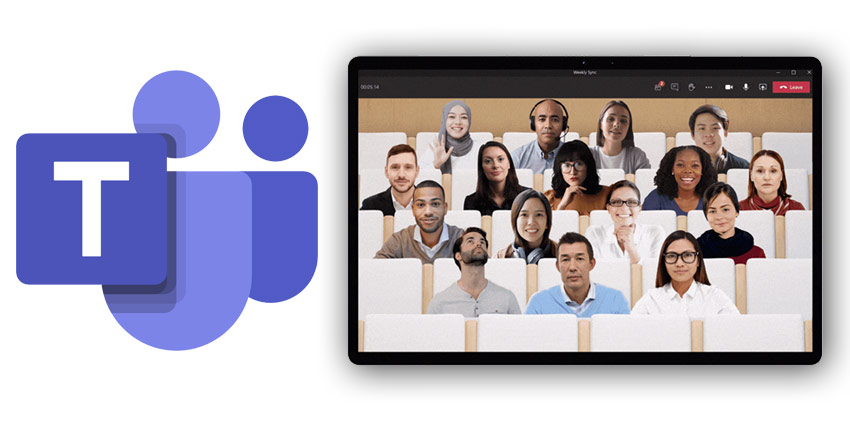

Recently introduced as an exciting new feature for Microsoft Teams, Together mode promises to bring people together in the digital world. Unlike traditional video conferencing tools where people are aligned in a grid format, Together mode delivers a truly shared environment.
Using intelligent technology, Together mode can pluck your image from your video stream and use it to create an avatar for you. This “avatar” sits alongside the other people in your team in an auditorium-style setting (see above). The result is a more aligned space where everyone can feel more connected.
How to enable Together Mode
Make sure you have the latest version of Microsoft Teams, then, click on your avatar, click on ‘Settings’:
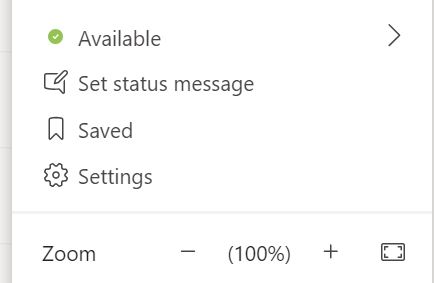
You then need to enable the ‘New Meeting Experience’:

…and restart Teams. Then, once Microsoft Teams is back up and you are in a meeting, click the “…” at the top of the screen:

…and finally, select ‘Together Mode’. Job done!
After you’re set up and ready to go, the real question is, how do you get the most from Together mode?
When You Should, and Shouldn’t Use It
Together mode is a unique and impressive feature of the Microsoft Teams’ experience. Initially, Microsoft came up with this solution as a way to reduce feelings of isolation during the COVID-19 pandemic. However, you don’t have to be in lockdown to benefit from Together mode. The best times to benefit from this feature include:
- When you’re chatting with a larger group: If lots of attendees are speaking, then they may feel more comfortable in a Together mode environment that feels like an old-fashioned boardroom.
- When your team struggles to pay attention: Together mode can help people to stay attentive during business meetings and lectures.
- When you have frequent video meetings: Microsoft says that people have less meeting fatigue with together mode.
- When you want see attendee sentiment: If you need to see how people respond to your message, then Together mode is ideal.
However, there are some limitations to Together mode too. For instance, it’s not a good option if you want to show off whiteboard content, because the only image you’ll transmit is your face. You also can’t share your screen using PowerPoint presentations right now, and you can’t show the space around you.
Together mode works best when your users are sitting in one place (not walking to a coffee shop). It also requires just as much focus as any video conversation – so please never encourage your employees to take part when they’re driving or doing something that demands attention.
Enjoying Together Mode
The initial release for Microsoft Teams Together mode supports up to 49 people at once. To make sure you’re getting the most out of your meetings, ask everyone in your team to switch their camera on.
While there is support for voice-only participants coming, together mode is about real human connections. You’ll get a much better result when everyone is camera-ready.
If you’re not sure how comfortable your team members are going to be using a video conferencing experience like this, let them test it out. Invite your group for an informal meeting where you check out the new experience and play around with the things you can do – like tapping each other on the shoulder.
Microsoft also recommends helping your employees to get the physical set-up right. For instance, Together mode works best when the screen is placed directly ahead of you, and if you have a big monitor.
You can find more tips on how to master Together mode here.