
The Productivity Wins That Matter Most Are the Ones You Don’t Have to Buy
When you speak to CHROs and employee experience leaders, the problem is rarely a lack of tools. If anything, it is the opposite. Work now unfolds across dashboards, documents, collaboration platforms, AI assistants, and an ever-growing collection of browser tabs.
That is why this update matters. Google has made plenty of noise about AI as Gemini rolls steadily into Chrome. But behind the headlines sits a smaller release, quieter and more practical, that directly improves how everyday work feels.
Chrome Split View is one of those changes.
The Browser Has Become the Workplace OS
Whether employees are issued Windows or macOS, the reality of modern work looks remarkably similar. Most of the day is spent inside a browser.
- Documents and spreadsheets
- Meetings
- CRM systems
- Analytics dashboards
- Knowledge bases
- AI tools
For many organisations, Chrome has quietly become the operating system for knowledge work. In that context, productivity improvements inside the browser directly shape focus, flow, and employee experience.
How Google Chrome Split View Works (And Why Adoption Is Easy)
Split View is built in, native, and intentionally simple.
- Right-click a tab and select Add tab to split view
- Or drag a tab to the edge of the window to initiate the split
- Resize each pane using the divider
- Swap tabs left or right as needed
- Exit Split View with a single action
From an EX perspective, the key point is that adoption friction is almost zero. There is no training programme and no workflow change. People simply discover a better way of working with the tools they already use.
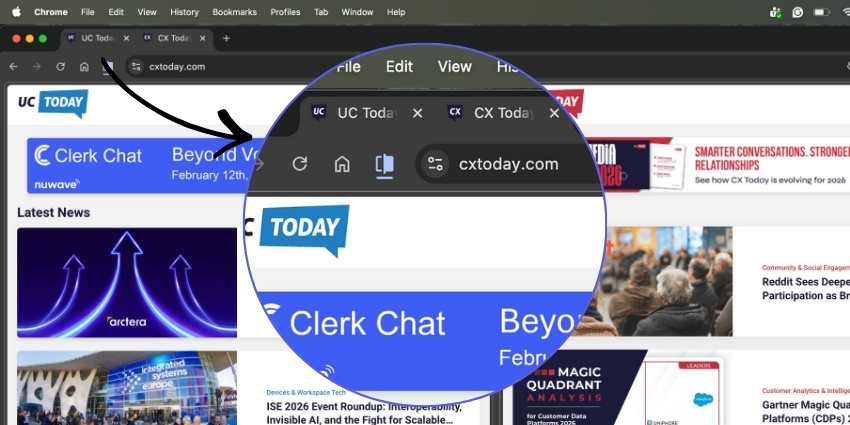
The Real Employee Experience Impact: Less Switching, Less Strain
Split View does not try to do everything. It removes one of the most persistent sources of digital friction: constant context switching.
- Reviewing research while drafting content
- Comparing dashboards without flipping between tabs
- Working between CRM records and internal documentation
- Referencing knowledge bases during live customer interactions
When the browser becomes the workplace, even small UX changes can have outsized impact on employee experience.
The Real-World Use Cases (Or: Small Problems You No Longer Have to Care About)
Split View really earns its keep in the small, faintly absurd moments of modern work.
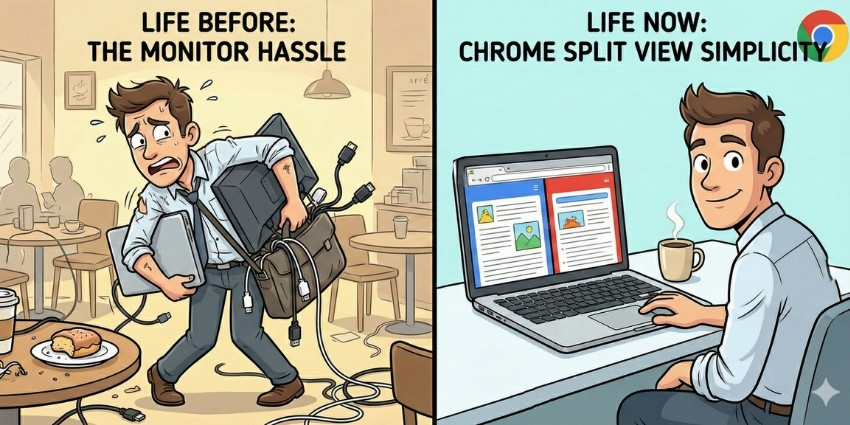
Your team is on the move. On a train. In a café. Somewhere between a backpack and a lukewarm coffee. Serious work used to imply a second screen, or at least the mild discomfort of trying to remember what was on the other tab.
With Split View, the browser becomes its own second monitor. Nothing extra to carry. Nothing extra to forget.
Then there is the flexible working space. The hot desk. The monitor is there. The desk is free. The meeting is about to start. And the HDMI cable has quietly disappeared.
Split View turns that moment into a non-event. Two tabs. One window. No scavenger hunt.
There are other small victories too:
- Comparing dashboards without opening a third window you immediately lose
- Writing a document while pretending you are not constantly switching tabs
- Following a meeting agenda while the meeting unfolds beside it
- Working comfortably from a laptop without feeling faintly under-equipped
None of this is dramatic. But it is reassuring. The day simply feels a little less awkward.
There’s a particular moment in hybrid work when you realise the monitor is there, the desk is free, the meeting is about to start… and the HDMI cable has vanished. Chrome Split View turns that familiar frustration into a non-issue. Two tabs. One window. No scavenger hunt.
No New Screens, No New Spend
One of the most overlooked benefits of Google Chrome Split View is what it does not require.
- Additional monitors
- Docking stations
- Virtual desktop tools
- Productivity extensions
For laptop-first and hybrid teams, Split View acts as a virtual second screen inside the browser. It is an EX improvement that scales without touching procurement budgets.
Where Gemini Comes In
While Split View improves how information is arranged, Gemini enhances how intelligently that information is handled.
Embedded into Chrome via a side panel, Gemini can summarise content, answer contextual questions, and help rewrite or validate information without breaking workflow.
Split View and Gemini: A Browser That Thinks With You
Put together, the picture becomes clear.
- Source material on one side
- A working document on the other
- Gemini assisting without forcing a context switch
Chrome starts to feel less like a container for tabs and more like a context-aware work platform. For CHROs and EX leaders, that is where the real value lies.
The Bottom Line
Not every productivity breakthrough arrives with a bold AI demo.
Sometimes it comes from removing friction in the tools employees already live in.
Google Chrome Split View is a reminder that improving employee experience does not always require new hardware, new platforms, or new spend. Sometimes it simply requires noticing where work actually happens and making that space better.
Increasingly, that space is the browser.