
Now that the new version of Microsoft Teams is available globally, you might wonder how to check for the latest Microsoft Teams app. After all, if you want to take advantage of all the latest updates to Teams, you need to keep your app up-to-date.
Plus, regularly updating Teams is a good way to stay one step ahead of common bugs and issues. Microsoft doesn’t just introduce new features with updates, it patches problems and fine-tunes the software too. The good news? Most versions of Teams will update automatically.
The web version of Microsoft Teams, plus Windows and Mac desktop apps, should automatically update whenever a new patch is available. However, there are times when updates don’t happen when they should. Also, if you’ve been religiously using the Classic version of Teams, your admin might not have updated the system yet.
Here’s how you can make sure you’re up-to-date.
The New Version of Teams: Roll-Out Insights
Before we look at how to check for the latest Microsoft Teams app, it’s worth considering how the update from classic Teams to “New Teams” is taking place. As mentioned above, “New Teams” is now the standard for most Microsoft users.
For clients using the Microsoft Controlled update policy, New Teams has been the “only” option since April 2024. For VDI clients on GCCH / DoD plans, “Teams Only” only began being implemented in August 2024.
The end of availability and support for Microsoft Teams varies depending on your plan. Native clients will have begun to lose support for Microsoft Teams (as of July 2024). However, Classic Teams is still accessible until July 2025.
Similarly, VDI clients (commercial and GCC users) won’t lose support until October 2024, and the classic version will be completely inaccessible starting July 2025.
You can find more information on the end of availability for Microsoft Teams “Classic” here, but in the meantime, there’s still a good chance you might be using the Classic app.
How to Check for the Latest Microsoft Teams App
As mentioned above, Microsoft Teams should automatically update. It should also automatically move you from the Classic to the New version of Teams, based on your admin update policy. However, you can still double-check which version of Teams you’re using and whether there are any updates you can download whenever you like.
Here’s how to check your version and look for updates.
Find the Version of Microsoft Teams You’re Using
First, you’ll need to log into Microsoft Teams. I’d recommend checking the web version of Teams, and your desktop app for Mac or Windows first. If you’re using the web app, you can find out which version of Microsoft Teams you’re using by clicking on the three dots (…) next to your org name and profile picture on the top of the page.
Scroll down to the About Teams button at the bottom of the screen, and click on it. The Version number should be listed at the top of the page, above Legal Information.
The web app won’t tell you whether you’re on the “latest version” of Teams, but you can always search on Google for the number you see to see if you’re up to date.
Alternatively, if you’re using the desktop app, you’ll get a little more information. Click the (…) button again on the desktop app, and click About Teams.
Here, you’ll see the number associated with your version of Teams, as well as a notification telling you whether you’ve got the latest version or not. The notification will also show you the last team the Teams client checked for updates.
If you’re using a mobile device, you’ll get less information again, but you can still check your version of Microsoft Teams by tapping your profile picture, selecting Settings then choosing About.
How to Check for Updates for Microsoft Teams
Once you’ve checked which version of Teams you’re using, you can look for any updates you need to install. Notably, figuring out how to check for the latest Microsoft Teams app is a little more complicated when you’re using New Teams. Microsoft expects the service to update automatically.
How to Check for the Latest Microsoft Teams App Updates: Desktop
If you’re using an older version of Windows (under Windows 11) or a Mac, log into Teams and click the (…) menu button next to your profile picture, and you’ll see the Check for Updates option.
Teams should display a message telling you that it will check for and install any updates while you continue to work on the platform. This means you won’t have to shut down your app while you’re updating it. Notably, if Microsoft has already detected an update for your app, but hasn’t applied it yet, you should see a message next to the (…) saying “Update”.
When you click the (…) button, there should be an option at the top of the list to Update and Restart Teams. Click that to apply the update straight away.
If you’re on Windows 11, the process is a little different. Again, you can click the (…) button, but there’s no “Check for Updates” option. Instead, you’ll need to select Settings and About Teams.
Teams will immediately check for available updates, and below the Version title, you’ll see whether any updates are available. Click Update Now to update the app.
Notably, the process is a little different again for Linux users. The app doesn’t automatically update on Linux. That means you’ll need to use your package manager to download and install new updates.
How to Check for the Latest Microsoft Teams App Updates: Mobile
For Teams users on an Android or iOS device, such as a smartphone or tablet, there’s no way to “check for updates” directly within the app. Although you can see the version of Teams you’re using (as mentioned above), you can’t scan for updates.
Instead, you’ll need to rely on the app store you used to download Microsoft Teams.
On an Android device, go to the official Google Play store and search for Microsoft Teams. If there’s an update available for your app, you’ll see the Update button. Tap that and you’ll download the latest software to your phone.
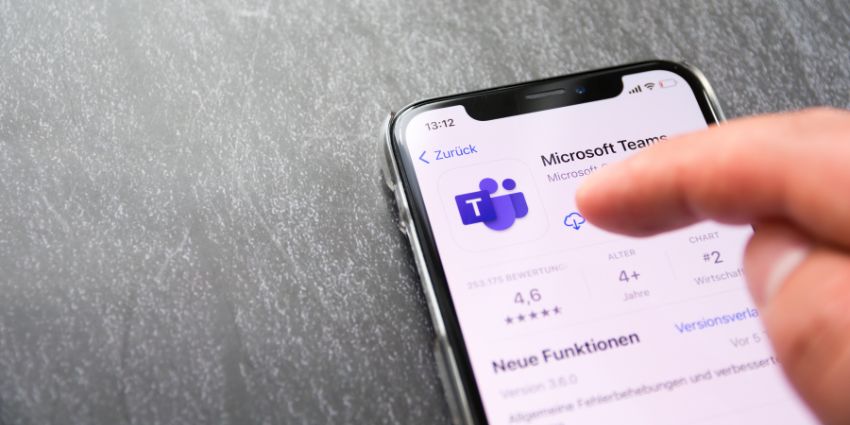
For users on an iOS device, the process is similar. Go to the Apple app store, and at the bottom of the page, click the Updates tab. On the Updates screen, you’ll see all of the apps with updates ready to install. If Microsoft Teams has an available update, it will be listed on the page.
Tap the Update button next to Microsoft Teams, and the App store will start your update. From there, you should be able to load the latest version of Teams.
Keep Your Microsoft Teams App Up to Date
There you have it, everything you need to know about how to check for the latest Microsoft Teams app, and keep your software up to date. Remember, while Microsoft does upload its apps automatically (for the most part), there’s always a chance you could miss out on an update.
Checking which version of Teams you’re using regularly and applying any updates that might be available ensures you can access the latest features. Plus, it will help to keep your app running smoothly, with fewer bugs and issues.
Quick tip: Remember, it’s a good idea to restart your Microsoft Teams desktop app after any updates, to ensure that patches and new features are applied.
FAQs
How do I know if my Teams is updated?
Microsoft Teams automatically applies updates for the desktop, web, and mobile versions of the app. If you miss an update on the desktop version, you should see a notification next to the (…) button at the top of Teams. Click that button to update and restart your app.
What is the new Teams app?
The new version of Teams (now standard for most users), is the latest rebuilt version of the Microsoft Teams client, designed for more efficient use of device resources. It offers a better level of performance for users, as well as access to the latest features of Microsoft Teams.
How do I find the latest version of Microsoft Teams?
You can search for the latest version of Microsoft Teams for all devices on the web. To check which version of Teams you’re using, click on the (…) button on your app, or your profile picture (on the mobile app), and look for About. Look at the Version title to see if you have the latest instance of Teams installed.
Does Microsoft Teams update itself?
Microsoft Teams installs updates automatically for the web version of the app, as well as Mac and Windows devices. The client should also update at least once a month on your phone. However, you will need to install updates manually on a Linux device.
How do I force Teams to update to the latest version?
To force Teams to update to the latest version, make sure you install the application in the default location on your device first. Select your avatar in the top right corner of Teams, and choose Check for Updates to look for recent updates.