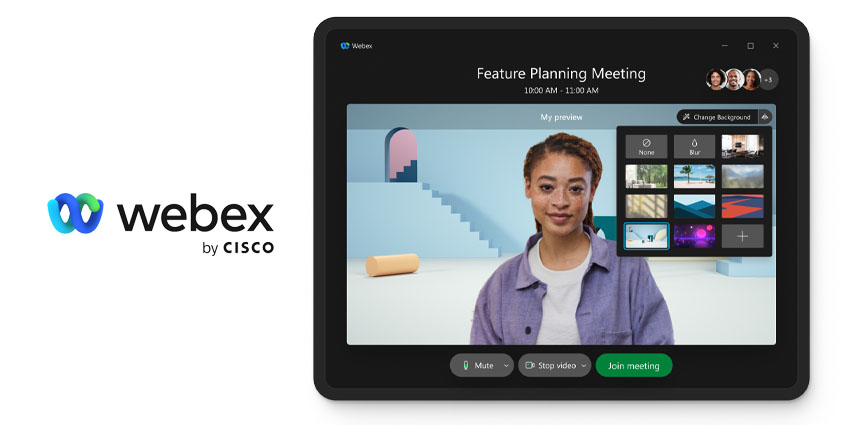

As demand for video conferencing and collaboration tools has continued to grow, so too have the number of solutions available to help facilitate more successful meetings and events. Virtual backgrounds, for instance, are one of the most effective ways for video communication users to enhance their professional image when connecting with colleagues and clients.
With a virtual background, employees working from home can hide the mess of their sitting room, protect their privacy, and make it appear like they’re sitting in a traditional office. A virtual background can also help business users deliver a consistent brand image when hosting events, webinars, and conversations with customers.
Fortunately, most top video conferencing tools today have various virtual background features and functionality to explore. Here’s how any Webex meetings or event user can access their own virtual background.
Prerequisites for Using Webex Virtual Backgrounds
Most employees using a Webex ecosystem for virtual meetings and events will be able to customize their backgrounds. However, there are some prerequisites for business administrators to keep in mind. For instance, some versions of specific operating systems may not support virtual backgrounds.
Currently, the following application versions are suitable for virtual backgrounds:
- Mac and Windows: 40.6.x and later, and 40.8 and later for custom backgrounds.
- IOS: 40.4 and later for Webex Events, Meetings, and Training virtual backgrounds.
- Android: 40.6 and later for all Webex Meetings, Training, and Events
Notably, Webex does note that the “Change Background” option on Webex may not work on some Windows devices, even if the option appears on the application.
Users running virtual backgrounds on a Windows OS will need at least an Intel Core i3 processor or higher, 4GB of Ram, and an Intel HD Graphics driver (version 26.20 or later). Mac users need at least an Intel processor with six cores or higher.
Before users in a Webex team can use virtual backgrounds, administrators will also need to configure the option to be available for their users. To do this, visit the Webex Site Administration section and go to the “Configuration” tab. Click on “Common Site Settings,” followed by “Options.”
Scroll to the “Site Options” section and check the box for “Enable virtual background.” If a Webex site is version 40.4.12 or earlier, admins may also need to check the “Display user avatars in the meeting client” option. To allow users to choose their virtual backgrounds, check the box for enabling custom backgrounds.
How to Use a Webex Virtual Background
Once the administrator for a Webex team has enabled virtual backgrounds, it’s relatively easy for users to choose one of these backgrounds during events and meetings. The process is slightly different for each device, however.
On Desktop:
Mac and Windows users can choose whether to set a virtual background during or before a meeting. Before a meeting, click the “Change Background” option in the preview screen, and select the appropriate background. Users can blur their surroundings, choose a default virtual background available for all Webex users, or upload a unique virtual background.
Clicking the “+” icon will allow users to upload an image, animated GIF, or video file for their background if “custom backgrounds” have been enabled. Webex recommends using a file of at least 480 x 360 pixels.
Users can also enable a virtual background during a meeting by clicking on the downward pointing arrow next to the “Stop video” option. Here, they can click “Change virtual background” and select the type of background they want, then select the “Apply” button.
On Mobile Devices (Android and iOS)
Virtual backgrounds are available for meetings, webinars, and events on mobile devices via the dedicated Webex mobile apps. To set a virtual background before a meeting, users must tap the video icon (which looks like a camcorder) and select “virtual background.”
Here, users can choose between blurring their background, using a default virtual background, or uploading an image, GIF, or video file from their mobile device. The image selected by the user will save to their mobile device so they can use it again later.
When users are ready for everyone in the meeting or event to see their background, they need to tap the “apply” button.
Best Practices for Using Virtual Backgrounds
While most Webex users can access virtual backgrounds easily, there are some best practice guidelines that business leaders may want to share with their teams. For instance, if companies want to allow their team members to use custom virtual backgrounds, it may be worth creating a policy to highlight the appropriate images and videos.
Alternatively, business leaders can remove the option to upload custom backgrounds completely to avoid any potentially inappropriate backgrounds. It’s possible to add extra virtual backgrounds to the “default” options on Webex by downloading them from the Webex site.
Other best practice tips to keep in mind include:
- Get the lighting right: Encourage users accessing virtual backgrounds to sit in a well-lit environment to ensure the virtual content works properly.
- Prepare for each meeting: Employees should wear clothes that are a different color from their surroundings to provide plenty of contrast, and it’s often helpful to sit in front of a static backdrop or wall to reduce the risk of warping.
- Close other programs: Depending on a computer or mobile device’s capabilities, applications with high CPU or GPU usage demands can sometimes harm the performance of virtual backgrounds.
It may also be helpful for business leaders to provide their employees with insights into the appropriate times to use a virtual background. Though this feature is popular, it may not be ideal for all instances. For instance, a virtual background could rapidly reduce the battery life on a user’s mobile phone if they’re using a smartphone to capture content.