
Want to know more about Travel Mode on Meta Quest headsets? This comprehensive guide will tell you everything you need to know.
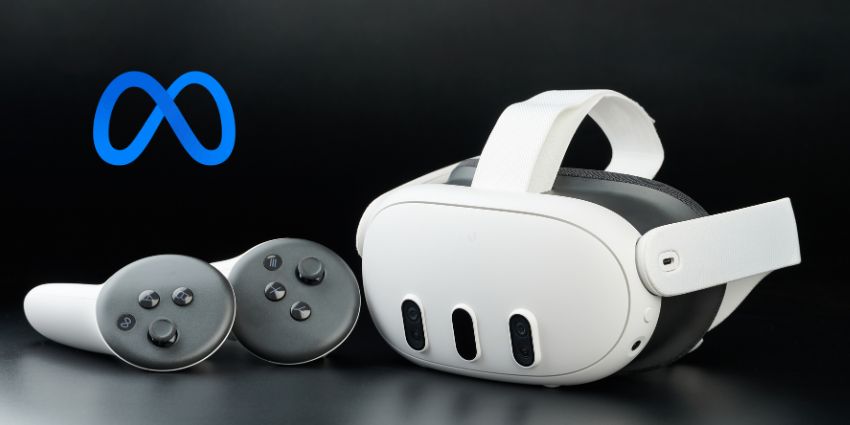
The Meta Quest 3 is easily one of the most popular extended reality headsets around today. It promises an exceptional virtual and mixed-reality experience at a reasonably affordable price.
But it’s not just its incredible performance that makes it so appealing to consumers and enterprise users. The Quest 3 also introduces some unique features that various older headsets have missed – such as a dedicated “Travel Mode.” While the (far more expensive) Apple Vision Pro does offer something similar – Meta’s Travel Mode is more impressive and reliable (in our experience).
So, what exactly is Travel Mode on Meta Quest, how does it work, and how do you enable it?
What is Travel Mode on Meta Quest Devices?
Travel Mode is a newer feature for the Meta Quest 3 and the Quest 2 in May 2024. It was included as part of a major software update for the popular device series and announced by Meta through a blog post on its official website.
Travel Mode allows users to enhance the experience they’ll get with their extended reality headset when they’re traveling. It’s an experiential feature that’s fine-tuned for air travel, although you could use it when you’re a passenger in a car, train, or bus.
The only difference is that Meta hasn’t yet introduced specific algorithms for things like train transport – so you’re unlikely to get the same experience.
When Meta first introduced the new solution, it also shared that it was partnering with Lufthansa airline company on a “pilot program” that would provide all Business Class passengers on select flights with their own custom Quest 3 to enjoy on the plane.
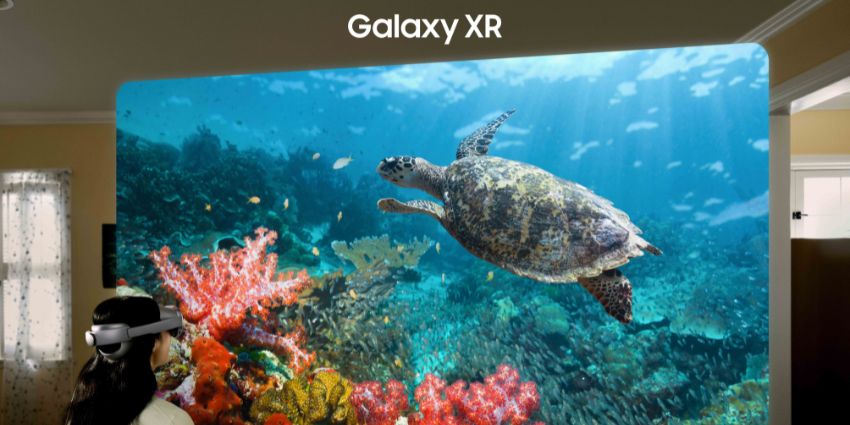
Travel Mode transforms your Quest 3 (or Quest 2) into the ultimate form of in-flight entertainment. Forget staring at a tiny screen with limited movies and shows. With your Quest, you can access Wi-Fi to launch a browser, watch YouTube videos, view pre-downloaded content, and play games.
Most importantly, the algorithms used by the Quest 3 in Travel Mode are tuned to the motion of an airplane. This means you’ll still get a stable and consistent experience in virtual and mixed reality when looking out of your window, sitting, or even lying down.
How to Use Travel Mode on Meta Quest
Although Travel Mode has been around for a few months, it has only recently moved out of its “experiential” phase. Plus, it’s still only tuned specifically for air travel. To enable the Travel Mode experience (alongside your Meta headset), you’ll need a few things. First, you’ll have to ensure you’re running the latest version of the Meta OS software on your device.
Generally, your Quest 3 should update automatically whenever it’s connected to the internet in your home or office. However, you can update the device manually by opening your Universal Menu (by pressing the Quest button), clicking on Settings and selecting System.
Before you use Travel Mode on the Quest, you’ll also need to ensure your device is connected to the internet via Wi-Fi. If your plane doesn’t offer Wi-Fi, you’re out of luck. Ensure your device is connected to the Wi-Fi on your plane by heading into the “Settings” menu. Remember, you might need to use your controllers to enter a password.
Enabling Travel Mode on Meta Quest
Enabling Travel Mode is pretty simple if you have the right software installed, your headset (fully charged), and a Wi-Fi connection.
Meta says that depending on which airline you’re using, your headset may automatically detect that you’re “in flight” and recommend turning Travel Mode on. Plus, once you enable Travel Mode for the first time, it will automatically be added to the Quick Settings menu, which you can access by tapping the Meta button on your Touch controller.
If you haven’t used the mode before or recently updated your device, press the Meta button on your controller to access the universal menu. Tap on Quick Settings, then Settings (if Travel Mode doesn’t appear automatically).
Scroll down to Experimental and tap the toggle next to Travel Mode to switch it on. Then go back to your Quick Settings and select Travel Mode again.
One thing to remember is that Travel Mode doesn’t support Touch Pro or Meta Quest Pro controllers (but you can use your hands with spatial computing and Touch Plus controllers).
Using Travel Mode on the Meta Quest: Safety Tips
Meta recommends following a few “safety tips” when using Travel Mode. Some are pretty obvious. For instance, despite what you might have seen other people doing in Apple Vision Pro memes earlier this year, you should never use an XR device when operating a vehicle.
Plus, it’s a good idea to pay attention to what’s happening around you during your flight. You should still listen to in-flight announcements and cabin crew recommendations and watch that “safety demonstration” before your plane takes off.
The other tips worth keeping in mind include:
- Watch your surroundings: In travel mode, the stationary boundary you might typically use with Meta Quest headsets won’t work the same way. It’s a good idea to remain seated to ensure you don’t bump into things or injure yourself.
- Pick appropriate content: Streaming movies and TV shows and playing basic games like Tetris is fine, but be mindful. You won’t be able to move around much, so high-octane games probably aren’t a great idea. Plus, if you’re going to be collaborating with team members during your flight, be careful about the information you share.
- Be mindful: Travel Mode is great, but it will occasionally encounter issues during periods of turbulence. Take a break if you notice that your device isn’t working exactly as you’d like at certain times. Remember to store your headset safely in the right location when you’re not using it, too (such as under your seat).
The Experience: What Travel Mode is Like
So, what is using Travel Mode on Meta Quest devices actually like? First, it allows you to use your Meta Quest on a plane without seeing digital content flying around and shaking everywhere.
Secondly, it gives you an entertainment upgrade. You can access apps like Netflix and YouTube, so you’re not restricted by whatever your current “in-flight entertainment offers”. Plus, there are tons of great games you can experiment with that don’t require a lot of movement, too.
Another thing worth noting is that the Quest 3 continues to work well in travel mode regardless of your position. It’s fantastic when you’re sitting down (Meta calibrated Travel Mode for that purpose). But you’ll still get a smooth experience if you’re lying down too. So if you snag a premium-class bed or a row of seats for yourself, you’ll still get a great result.
Plus, Travel Mode on the Meta Quest is also fantastic for productivity when you’re flying. You don’t have to limit yourself to playing apps and games. You can open your Virtual Desktop, connect a keyboard or laptop, to get some work done too.
Travel Mode: Meta Quest vs The Apple Vision Pro
We mentioned above that the Apple Vision Pro has a travel mode option, too. It works similarly to Meta’s solution, using sensors to keep your content stable and adapt to the motion of travel. Based on what we’ve heard from people who have used this setting, though, the reviews are mixed.
Floating screens on the Apple Vision Pro can struggle to adapt to changing light conditions. When the cabin lights are switched off during a long-haul flight, ou might end up with many “tracking errors”. That doesn’t happen nearly as often on the Meta Quest.
Speaking of tracking, the Apple Vision Pro seems to struggle more with hand tracking when it’s in Travel Mode. There are times when your pinches and gestures won’t be registered. Alternatively, when you’re going through periods of turbulence, the Vision Pro might detect “gestures” you didn’t mean to make.
If you do have any issues with hand tracking on the Meta Quest, you can always switch to physical controllers. The fact that Apple doesn’t provide this option with the Vision Pro can make navigating content during travel a little frustrating.
Additionally, although the Vision Pro does have its “Eyesight” display, which you can potentially use to show cabin crew you’re paying attention to them, it won’t always work perfectly. With both headsets, you’ll have to take the device off when interacting with other people or ordering your in-flight tea and coffee.
Traveling with your MR Headset
A feature like Travel Mode on the Meta Quest might not seem particularly exciting to some people. If you’re the kind of person who doesn’t travel very often, it’s a bit of a novelty. However, Travel Mode is a revolution for those of us who spend a lot of time flying between countries.
It offers a better way to keep yourself entertained and amused during exhausting, long-haul flights. Plus, the experience is surprisingly better than what you’d get from the Vision Pro. You can even use it to boost your productivity on the move.
Of course, the experience isn’t perfect. You’ll still need to contend with the limited battery life of the Meta Quest 3, and the somewhat uncomfortable experience of wearing a headset for several hours. But, if you’re looking for a way to upgrade your journeys without necessarily paying for a business-class seat, Travel Mode on the Quest 3 could be a good start.